Mastering Git and GitHub Workflow for Team Projects
Learn how to efficiently manage team projects using Git and GitHub. This guide covers everything from initializing repositories to best practices for collaboration.
Published
18 June 2026
Reading Time
3 min read
Author
Infotact Team
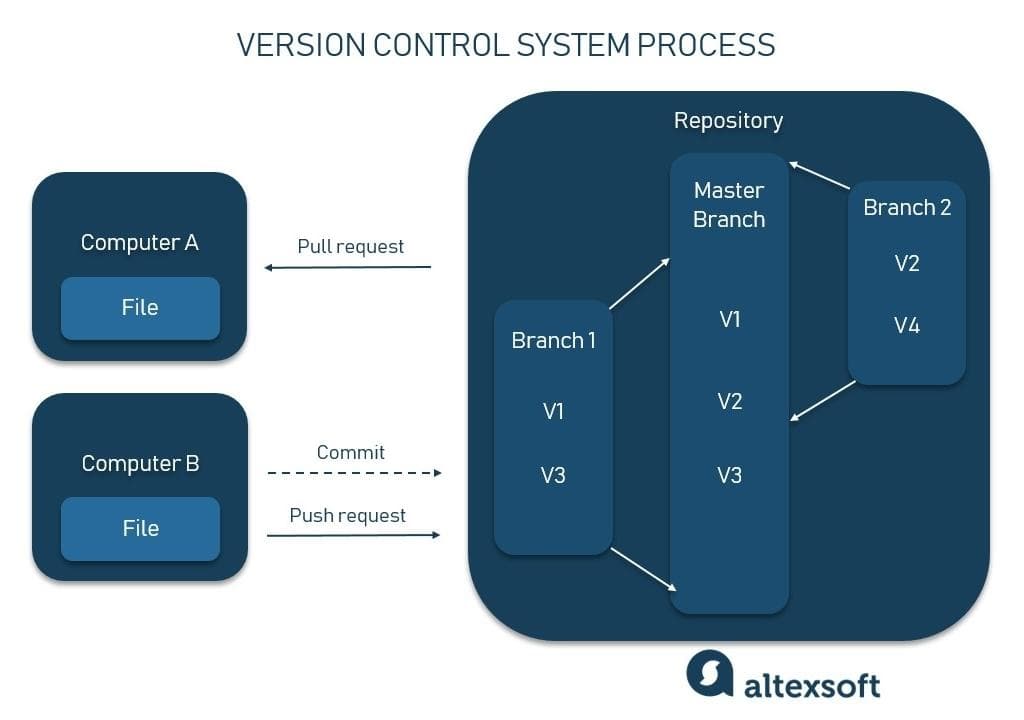
Mastering Git and GitHub Workflow for Team Projects
Git is a powerful version control system that enables teams to collaborate efficiently while maintaining code quality. In this guide, we will explore the essential components of a Git and GitHub workflow tailored for team projects.
Initializing Repositories
To start collaborating, the first step is to initialize a new Git repository. You can do this by running the following command:
git initOnce initialized, you can add a remote repository on GitHub using:
git remote add origin Branching Strategy
A clear branching strategy is crucial for effective collaboration. Here are some common branching models:
- Feature Branching: Create a new branch for each feature or bug fix.
- Release Branching: Maintain a separate branch for each release.
- Hotfix Branching: Use hotfix branches for urgent fixes in production.
Feature Branches
Feature branches allow developers to work on new features independently. To create a feature branch, use:
git checkout -b feature/your-feature-nameOnce your work is done, you can push your branch to the remote repository:
git push origin feature/your-feature-namePull Requests
After finishing a feature, you should open a pull request (PR) to merge your changes into the main branch. This process includes code review, discussions, and testing. To create a pull request, navigate to your repository on GitHub and click on 'Compare & pull request'.
Merge Conflicts
Sometimes, multiple team members may modify the same line of code, leading to merge conflicts. To resolve a conflict:
- Pull the latest changes from the remote repository:
git pull origin main- Resolve the conflicts in your code editor.
- Stage the resolved files:
git add .- Commit the changes:
git commit -m "Resolved merge conflict"Best Practices
To optimize your Git workflow, consider the following best practices:
- Commit often with clear messages.
- Keep your branches up to date with the main branch.
- Review code before merging.
- Use `.gitignore` to avoid committing unnecessary files.
Common Commands
Here are some essential Git commands to keep handy:
git clone- Clone a repository.git add .- Stage changes for commit.git commit -m "message"- Commit changes with a message.git push origin main- Push changes to the main branch.git pull- Pull the latest changes from the remote repository.
Conclusion
By following these guidelines, your team can leverage Git and GitHub effectively, ensuring a smooth and collaborative development process. Start implementing these practices today to enhance your team's workflow!
Highlights
- •Understand the importance of a clear branching strategy
- •Learn about managing merge conflicts effectively
- •Discover best practices for team-based projects
Need similar implementation support?
Work with our engineering team on scalable web apps, backend architecture, and growth-ready product delivery.
Related Content
Keep reading similar insights
General
How to Build a File Upload System Using Multer and Node.js
Learn how to create a robust file upload system with Multer and Node.js. This guide covers everything from installation to error handling.
General
Redis Caching Explained for Beginners
Discover how Redis can enhance your application's performance through effective caching. This guide covers installation, integration, and strategies for optimal use.
General
Docker for Developers: Complete Beginner Guide
Unlock the power of Docker with our comprehensive beginner's guide. Learn essential concepts, tools, and techniques for effective container deployment.